Frequently Asked Questions
How to View the List of Supported Models
You can obtain all supported models via the /v1/models endpoint:
curl https://api.umodelverse.ai/v1/models \
  -H "Content-Type: application/json"
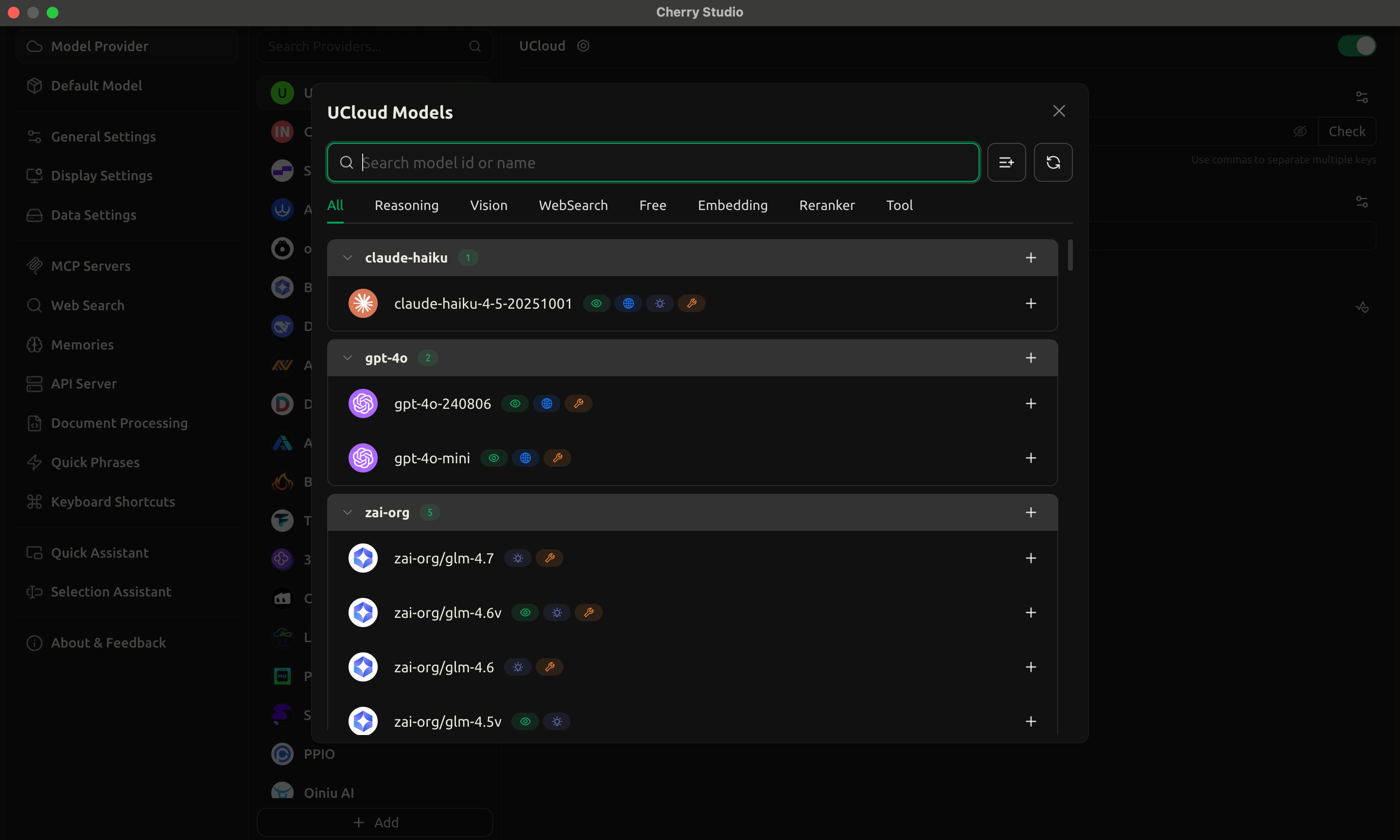
It is recommended to use the Cherry Studio client. After configuring the API address, click the management button to visually view all supported models. For detailed configuration tutorials, please refer to: Cherry Studio Configuration Tutorial.
GPT-5/o Series Model Parameter Error
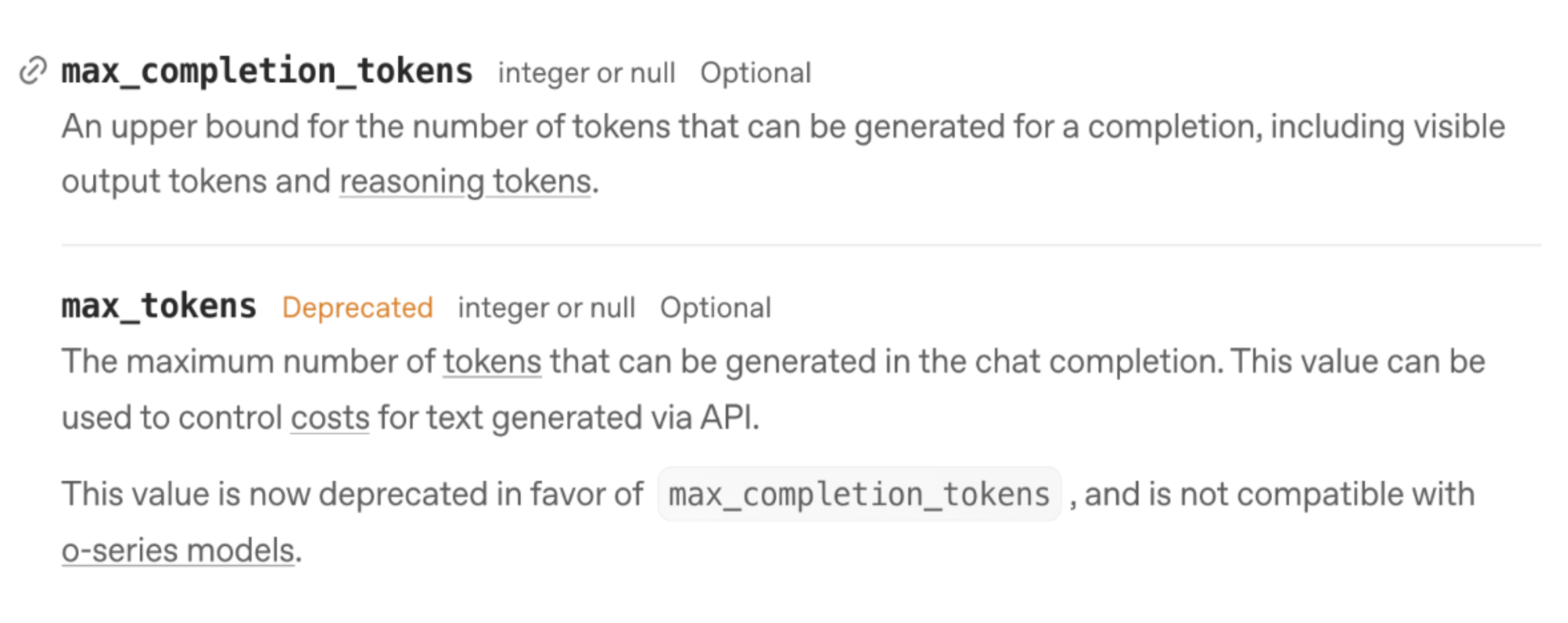
OpenAI has marked the max_tokens parameter as deprecated. The GPT-5 series and o series models no longer support this parameter. For more details, please refer to the OpenAI Official Documentation .
If you need to pass image files, please use base64 encoding. URL method is not supported yet.
Explanation of gpt-5-codex and gpt-5.1-codex Series Models
These two series of models only support the /v1/response/ endpoint.
How to Enable/Disable the Thought Process for Gemini Series Models
Use the Gemini protocol’s v1beta/models endpoint and configure the following parameters. For detailed documentation, please refer to Gemini Protocol Compatibility:
"generationConfig": {
    "thinkingConfig": {
        "include_thoughts": true,
        "thinkingBudget": 0
    }
}
Parameter Descriptions:
include_thoughts: Set totrueto enable thought process output, set tofalseto disablethinkingBudget: Control thought time budget
Claude Series Model Description
Claude Sonnet 4.5 only supports specifying one of the temperature or top_p parameters, and both cannot be used simultaneously. For more information, see the Official Documentation .
Security Level Description for Gemini Series Models
Gemini API provides flexible security setting features, allowing you to adjust content filtering policies based on the application scenario in both prototyping and production environments. By configuring the security level, you can precisely control the strictness of content review in five filter categories.
Related Documentation:
Security Setting Configuration Example
The following example shows how to disable all content filtering (BLOCK_NONE), suitable for development scenarios requiring maximum flexibility:
{
  "safetySettings": [
    {
      "category": "HARM_CATEGORY_HATE_SPEECH",
      "threshold": "BLOCK_NONE"
    },
    {
      "category": "HARM_CATEGORY_SEXUALLY_EXPLICIT",
      "threshold": "BLOCK_NONE"
    },
    {
      "category": "HARM_CATEGORY_DANGEROUS_CONTENT",
      "threshold": "BLOCK_NONE"
    },
    {
      "category": "HARM_CATEGORY_HARASSMENT",
      "threshold": "BLOCK_NONE"
    },
    {
      "category": "HARM_CATEGORY_CIVIC_INTEGRITY",
      "threshold": "BLOCK_NONE"
    }
  ]
}
Available Filter Categories
HARM_CATEGORY_HATE_SPEECH: Hate speechHARM_CATEGORY_SEXUALLY_EXPLICIT: Sexually explicit contentHARM_CATEGORY_DANGEROUS_CONTENT: Dangerous contentHARM_CATEGORY_HARASSMENT: Harassment contentHARM_CATEGORY_CIVIC_INTEGRITY: Civic integrity
Available Threshold Options
The thresholds (HarmBlockThreshold) are used to block content when a specified harm probability is reached or exceeded:
HARM_BLOCK_THRESHOLD_UNSPECIFIED: Unspecified thresholdBLOCK_LOW_AND_ABOVE: Allows content with “negligible” risk, blocks content with “low” and above riskBLOCK_MEDIUM_AND_ABOVE: Allows content with “negligible” and “low” risk, blocks content with “medium” and above riskBLOCK_ONLY_HIGH: Allows content with “negligible”, “low”, and “medium” risk, only blocks content with “high” riskBLOCK_NONE: Allows all content, no blockingOFF: Turn off the security filter function
Choose appropriate threshold configurations based on your application requirements and usage scenarios. It is recommended to use stricter filtering strategies in production environments to ensure content safety.